
Download the PDF version of this manual
1. User Manual - N76 BLE (EN).pdf
2. User Manual - N76 BLE (DE).pdf
3. User Manual - N76 BLE (FR).pdf
4. User Manual - N76 BLE (ES).pdf
5. User Manual - N76 BLE (IT).pdf
6. User Manual - N76 BLE (NL).pdf
Relevant support documentation
1. Setup on macOS computer.pdf
WARNING
This product can generate laser beam. DO NOT STARE INTO BEAM OR EXPOSE USERS OF TELESCOPIC OPTICS. Do not shine the laser beam on people's or animal’s eyes to avoid eye damage! Do not give this product to children as a toy!
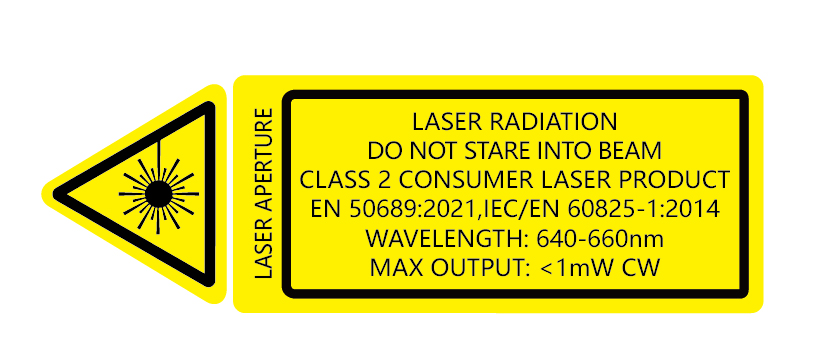
Warning label for red laser product:
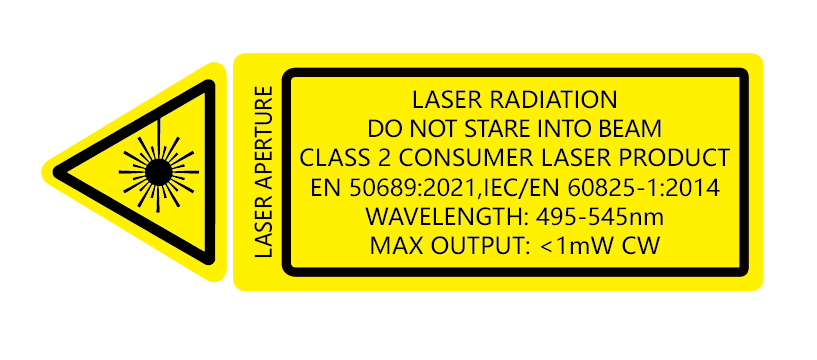
Warning label for green laser product:
Safety Precautions
1. Use this product correctly according to this manual.
2. This product is for professional use only. Children under 14 years of age are strictly prohibited from using it.
3. Do not point the laser beam at human eyes, including via mirror reflections.
4. Do not observe the laser beam with naked eyes or using optical instruments (e.g., telescopes or magnifying glasses).
5. Avoid pointing the laser beam arbitrarily at various optical reflective surfaces.
6. Do not intentionally or casually irradiate people.
7. This product contains a built-in lithium battery. If the battery swells, stop using it.
8. Do not place the product in high-temperature environments or throw it into fire.
9. Do not immerse this product in water or any other liquid.
10. Do not disassemble, impact, or crush the product without authorization. If the product malfunctions, contact Norwii after-sales support.
I. Operation system
Supports Windows 10/11 and macOS 10.15 and later. On Android and Linux systems, only support laser and page up/down functions.
II. Package contents
1. Wireless presenter * 1 (USB receiver stored inside the wireless presenter)
2. User Manual * 1
III. Specifications
Transmitter
Technology:Radio frequency
Frequency:2.4GHz
Control Distance:100m
Laser Power:see warning label on the product
Laser Distance:>200m
Wavelength:Red 640-660nm
Wavelength:Green 495-545nm
Battery capacity:360mAh lithium battery
Working Voltage:3.6-4.2V
Charging Voltage:5V
Dimension:139*18*20mm
Weight:30g
USB receiver
Working Voltage:4.5-5.5V
Dimension:26.5*12.7*5.5mm
Weight:2.0g
IV. Bluetooth connectivity

1. Bluetooth connection on Windows computer.
1) On the computer, turn on the Bluetooth switch, click Add Device, and select Bluetooth as the device type.
2) Turn off the power of the wireless presenter, press and hold the wireless presenter's page up key, turn on the wireless presenter's power switch, then release the wireless presenter's page up key. At this time, the wireless presenter's LED will flash, indicating that it is waiting for pairing in the next 3 minutes.
3) On the computer, find the "Norwii N76 BLE" in the "Add device", click connect, and at the same time, the presenter indicator light is off, and display "Norwii N76 BLE" connected in "Bluetooth & device". The presenter can now control the computer.
2. Bluetooth connection on macOS computer.
1) On the computer, select Bluetooth in the computer System Settings and turn on the Bluetooth switch.
2) Turn off the power of the wireless presenter, press and hold the wireless presenter's page up key, turn on the wireless presenter's power switch, then release the wireless presenter's page up key. At this time, the wireless presenter's LED will flash, indicating that it was waiting for pairing in the next 3 minutes.
3) On the computer, find the "Norwii N76 BLE" on “Nearby Devices”, click connect, and at the same time, the presenter indicator light is off, and display "Norwii N76 BLE" connected in "My Computer". The presenter can now control the computer.
3. Priority of USB receiver and Bluetooth connection.
The USB receiver has a higher priority than the computer's Bluetooth. After connecting the wireless presenter to the computer via Bluetooth, plug in the USB receiver, and the wireless presenter will disconnect from the computer via Bluetooth and establish a connection with the USB receiver. Pull out the USB receiver, and the wireless presenter will automatically connect to the computer via Bluetooth. The wireless presenter cannot be paired with computer via Bluetooth when the USB receiver is plugged in.
4. Bluetooth wireless presenter and device reconnection.
The wireless presenter can store IDs for the 7 most recently connected devices (computers, iPads, phones, etc.). The USB receiver is not included in these 7 devices. After turning on the wireless presenter, the first device that sends a reconnection request with a signal strength greater than -10 dBm will connect to the wireless presenter.
For users: If a computer is among the 7 most recently connected devices, turning the wireless presenter off and then back on within 5 meters (16 feet) of the computer will automatically reconnect the wireless presenter to the computer.
5. To clear the saved device IDs from the wireless presenter:
1) Turn off the power switch of the wireless presenter.
2) Press and hold the laser key (for the N20 BLE, press the Tab key; for some products without a laser key, press the Pointer key).
3) Turn on the power switch.
4) Release the key once the LED blinks.
The blinking LED indicates that the wireless presenter has cleared all saved device IDs and has entered Bluetooth pairing mode. Users can perform Bluetooth pairing within the next 3 minutes.
V. Function map

Attention: When using this product, please change your Input Method Editors (IME) to English input mode.
VI. Function Description
1. Power switch: push up to “ON” to turn on the presenter, push down to “OFF” to turn off the presenter.
2. Page up key :click to page up, long press to play slides from the current page. Long press again to end slide show.
3. Page down key :click to page down, long press to enter black screen, long press again to exit black screen.
4. Physical laser key :Press and hold to turn on the physical laser beam, and release to turn off the physical laser beam.
5. Volume key: Press "+" to up the volume, and "-" to down the volume. Long press will continuously up or down the volume.
6. Fn key : Click
  to perform the Tab function, which allows you to switch between hyperlinks on the page; double-click to perform the Enter function, which opens the hyperlink; long press
  to perform the Alt-Tab function, which allows you to switch between open windows. Release the key on the window you want to switch to, and it will switch to the desired window. The hyperlink function is available in PowerPoint, but Kingsoft WPS does not support the Tab key for switching between hyperlinks, so hyperlinks cannot be opened.
7. Function switching the page up and down keys.
Long press and
and imultaneously to switch between the four modes.
1) By default, the page up and down keys on the Bluetooth wireless presenter correspond to the left and right arrow keys on the computer keyboard, which is suitable for PowerPoint, WPS, Prezi, and Keynote.

2) The first time you press and hold both the page up and down keys on the wireless presenter simultaneously, the function will switch to the Page Up and Page Down keys on the computer keyboard. This is suitable for image-viewing software.

3) The second time you press and hold both the page up and down keys simultaneously, the function will switch to the mouse scroll wheel function. This is suitable for some short-video apps and web browsers.
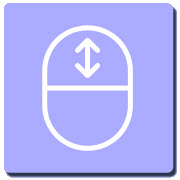
4) The third time you press and hold both the page up and down keys simultaneously, the function will switch to the up and down arrow keys on the computer keyboard. This is suitable for Word, Excel, and other applications.

5) The fourth time you press and hold both the page up and down keys simultaneously, the function will switch to the default left and right arrow keys on the computer keyboard.
6) After switching, the functions are automatically stored in memory and will not change until you change it again.
I. Installation
1. Take out the USB receiver and install.
Remove the USB receiver from the lower part of the wireless presenter, and then plug it into the USB interface of the computer. At this time, the bottom right corner of the computer desktop will display "Discovered New Hardware", and the system will automatically install the driver. When Windows displays "New hardware installed and ready to use", it indicates that the USB receiver installation is complete. The attached image is as follows:

(Take out the USB receiver)

(The USB receiver into the computer USB port)
2. Control the wireless presenter by operating the key of the flip pen.
3. Turn off the wireless presenter.
After use, please return the USB receiver to the presenter's original position and turn off the power switch to further save power. The attached image is as follows:

II. Frequently Asked Questions
1. How to download Norwii Presenter software and how to pair the presenter and the USB receiver?
For products that support key function customization or highlight serial products that support digital laser, highlight, magnifier, you need to download Norwii Presenter software. Please download it from the "Downloads" under the "Support" menu of Norwii official website www.norwii.com in English version.
2. How to know if the battery is out of power?
Turn on the power of the presenter, then press laser key to check if the laser can be turned on. If the laser cannot be turned on, usually it means the battery is out of power or the laser diode is dead and needs replacement.
If other keys are pressed and the LED doesn’t flash, it means the battery is out power.
If the LED on the wireless presenter starts to flash slowly, it means the power is low and the battery needs to be charged.
3. What to do if the laser becomes dim?
Laser dimming is generally due to low battery power and the need for timely charging. If the laser beam remains only a red dark spot after being fully charged, it indicates that the laser module is aging. When the laser module ages, please contact us for after-sales repair.
4. Why does the computer do not detect the device when the USB receiver plugs into the PC?
Please check whether the USB works or not. You can use a USB mouse or keyboard to test the USB port. If a USB mouse or keyboard works on the USB port and the USB receiver of the presenter doesn’t work, it means the USB receiver is broken or the USB drivers is not compatible with the USB receiver.
You can try another USB port of the same computer or USB ports of another computer to check whether the USB receiver is good or not. If it works on other computer, it means the USB drivers of the computer are not compatible with the USB receiver. You need to back up your data and reinstall the OS.
5. The laser is ok, and the USB receiver can be detected by the computer, why does the presenter control the computer?
The reason is the USB receiver doesn’t save the presenter’s address properly. You can use Norwii Presenter software to let the USB receiver to save the presenter’s address again. We also call this operation is to PAIR the wireless presenter and the USB receiver.
6. How to adjust the settings for Norwii Presenter on macOS?
On Apple's macOS, the Norwii Presenter software requires three permissions: Accessibility, input monitoring, Screen & System Audio Recording. If it has not been set before, please click "Grant Permissions" in the "About" tab of the Norwii Presenter software, and then open the corresponding permission settings in the window that opens. You can also check the box in front of the Norwii Presenter software in the above three permission settings in the "Launchpad - System settings – Privacy & Security – Accessibility, input monitoring, Screen & System Audio Recording" of macOS.
7. Special tips for charging.
The product only supports standard 5V charging and does not support all kinds of QC quick charging. Charging with a voltage higher than 5V will burn the product or fail to charge.
III. Certifications
CE, ROHS, FDA
FCCID: 2AXGRN95
IV. Declaration of conformity
This laser product complies with EN 50689:2021 and IEC/EN60825-1:2014/A11:2021. Complies with 21 CFR 1040.10 and 1040.11, except for deviations pursuant to Laser Notice No.50, dated June 24, 2007.
V. Product Support
Shanghai Norwii Technology Co., Ltd.
Add: 2F, Building 3, No 277, Jinfeng Road, Pudong New Area, Shanghai 201201, P. R. China
Tel: 86-21-51872080